








Join thousands of students achieving their dreams with expert-led courses.
Join free and unlock everything on EasyShiksha.
Takes less than 3 seconds — no password needed
Please enter a valid email address.
Checking your email…
Almost done — just verify your number so we can send course updates and certificates.
Used only for verification & updates
Incorrect OTP. Please try again.
Takes less than 10 seconds
Please select your country.
Please select your state.

Websites and web applications should be usable by people with different abilities, devices and ways of interacting with technology. However, some websites create unnecessary barriers through poor colour contrast, missing image descriptions, confusing navigation, inaccessible forms or controls that cannot be operated using a keyboard.
Web accessibility focuses on identifying and removing these barriers. For Bachelor of Computer Applications (BCA) students, it provides a practical way to improve front-end development, user interface design, software testing and application quality.
Accessibility is relevant to websites, mobile interfaces, educational platforms, online shopping systems, banking portals and government services. Learning these principles can help students build more inclusive applications and develop skills that complement their existing programming knowledge.
The World Wide Web Consortium (W3C) publishes the Web Content Accessibility Guidelines (WCAG), a widely used international standard for making digital content more accessible. WCAG 2.2 organises its guidelines around four principles: Perceivable, Operable, Understandable and Robust.
Students exploring different technology pathways can also review the BCA programme directory on EasyShiksha.
Web accessibility means designing and developing digital experiences so people with disabilities can perceive, understand, navigate and interact with them. It also supports users who encounter temporary or situational barriers.
For example, a person with low vision may need to enlarge text, while someone with a motor impairment may depend on keyboard navigation instead of a mouse. A person watching a video in a noisy environment may benefit from captions even if they do not have a hearing impairment.
Accessibility is not a feature that should be added only after a website has been completed. It is most effective when considered during planning, design, development and testing.
Images without meaningful alternative text.
Text and background colours with insufficient contrast.
Forms that do not clearly identify their fields.
Navigation menus that cannot be operated with a keyboard.
Buttons that rely only on colour or an unexplained icon.
Videos without captions or suitable text alternatives.
Headings arranged inconsistently, making content difficult to navigate.
Error messages that do not explain how to correct a problem.
These issues can make a website frustrating or impossible for some users to operate. They can also affect usability for people without disabilities.
WCAG 2.2 uses four core principles, often abbreviated as POUR. Understanding them gives BCA students a practical framework for reviewing websites.
| Principle | Meaning | Example |
|---|---|---|
| Perceivable | Information must be available in ways users can perceive. | Provide alternative text for meaningful images. |
| Operable | Controls and navigation must be usable. | Make interactive elements work with a keyboard. |
| Understandable | Information and interface behaviour should be clear. | Explain form errors using understandable messages. |
| Robust | Content should work reliably with browsers and assistive technologies. | Use semantic HTML and correctly labelled controls. |
These principles cover more than visual design. They also involve code structure, interaction patterns, content clarity and compatibility with assistive technology.
Why Should BCA Students Learn Web Accessibility?
Accessibility is useful for students who want to understand how professional websites are designed, developed and evaluated. It adds another quality dimension to ordinary front-end programming.
Students already learning HTML, CSS and JavaScript can apply accessibility principles directly to their projects. They can use semantic elements, accessible forms, clear focus indicators and meaningful link text.
Accessibility testing encourages developers to look beyond whether a page appears correct on screen. Students learn to evaluate keyboard interactions, labels, error handling and compatibility with assistive technologies.
A portfolio project becomes more informative when it includes an accessibility checklist, documented testing results and improvements made after testing.
Accessibility encourages students to consider different user needs rather than designing only for their own browsing habits.
Accessibility knowledge can complement careers in front-end development, quality assurance, UI/UX design, web development and accessibility evaluation. Specialist positions may require additional experience and training.
Students interested in broader technical development can explore other computer science and technology programmes to compare related learning pathways.
BCA students do not need to master every accessibility standard before starting. They can begin with fundamental techniques and gradually move toward structured evaluation.
Semantic HTML communicates the purpose and structure of page elements. For example, use headings for section titles, buttons for actions and links for navigation.
A simple example is:
Explore courses and learning resources.
View courses
Semantic elements help browsers and assistive technologies interpret a page's structure. They also make code easier to understand and maintain.
Meaningful images should have text alternatives that communicate their purpose. Decorative images can generally use an empty alternative-text attribute so screen readers can skip them.

The alternative text should describe the relevant information rather than repeat a filename or use vague wording such as "image."
Users should be able to reach and operate interactive controls without depending on a mouse. Test the Tab, Shift+Tab, Enter, Space and arrow keys where appropriate for the control.
A visible focus indicator helps users identify which element is currently selected. Developers should avoid removing browser focus outlines without providing a clear replacement.
Text must be distinguishable from its background. For WCAG 2.2 Level AA, the minimum contrast ratio is generally 4.5:1 for normal text and 3:1 for large text, subject to the standard's specific exceptions.
Colour should not be the only way to communicate important information. For example, a form should not mark an error only with a red border; it should also provide an explanatory message.
Forms should have clear labels, understandable instructions and useful error messages.
A placeholder is not a reliable substitute for a visible label. Students should also test what happens when a user submits an incomplete or incorrectly formatted form.
Accessibility testing combines automated checks with manual evaluation. No single tool can identify every barrier, so students should learn to use multiple approaches.
| Tool or method | Primary purpose | Beginner exercise |
|---|---|---|
| Browser developer tools | Inspect HTML, styles and page behaviour. | Check whether focus indicators are visible. |
| Lighthouse accessibility audit | Identify selected accessibility issues automatically. | Run an audit on a sample page. |
| axe DevTools | Find many common accessibility problems. | Inspect a form and review reported issues. |
| WAVE | Highlight potential accessibility barriers visually. | Examine missing labels and heading structure. |
| Keyboard-only testing | Evaluate interaction without a mouse. | Navigate the complete page using the keyboard. |
| Screen reader testing | Evaluate how content and controls are announced. | Test a simple page using a supported screen reader. |
Automated results require interpretation. A clean audit does not prove that a website is fully accessible, and some findings need human judgement to determine whether the content and interaction are appropriate.
Practical Accessibility Testing Checklist
Students can use the following checklist while reviewing a website or their own college project.
Every meaningful image has appropriate alternative text.
Decorative images do not create unnecessary screen-reader output.
Page headings follow a logical structure.
Links describe their destinations or purpose.
Buttons have clear names and perform the expected action.
All important controls can be reached using a keyboard.
Keyboard focus remains visible.
Text and interface elements have suitable contrast.
Content remains usable when text is enlarged.
Forms have labels and understandable instructions.
Validation errors identify the problem and help users correct it.
Important status messages are available to assistive technologies.
The page works at different viewport widths.
Automated findings are reviewed and manually checked where necessary.
This checklist is a starting point, not a complete WCAG conformance assessment. More comprehensive testing requires reviewing applicable success criteria and evaluating representative pages and user journeys.
A small audit is an effective exercise for BCA students because it combines web development, testing and documentation.
Choose a college website, a personal portfolio, a simple e-commerce demo or a student registration application. Use a site you are permitted to test.
Select a few important pages or workflows, such as the homepage, navigation menu, registration form and course listing. Record what will be tested.
Use a browser audit or accessibility testing extension to identify possible issues. Save the findings and note which ones require manual verification.
Navigate from the beginning to the end of the page without using a mouse. Check whether you can access menus, submit forms and operate interactive components.
Review image descriptions, heading order, link purpose, form labels, contrast and error messages.
Correct the issues you can reproduce. Run the same tests again and verify that the changes have not introduced new problems.
Document the issue, its location, the user impact, the proposed fix and the retest result. Screenshots or code examples can help explain the findings in a student portfolio.
The best beginner projects focus on a clear problem and produce evidence of testing and improvement.
Build a registration form with name, email, course selection and submission fields. Add labels, appropriate input types, keyboard support and clear validation messages.
Skills demonstrated: HTML forms, CSS, JavaScript validation and usability testing.
Create a sample college homepage and deliberately review common design barriers. Improve heading structure, navigation, text contrast and image alternatives.
Skills demonstrated: Semantic HTML, responsive CSS, content structure and audit documentation.
Develop a product page with descriptive product images, clear prices, accessible quantity controls and a keyboard-operable add-to-cart button.
Skills demonstrated: Front-end development, interactive controls and accessible content presentation.
Evaluate several pages from a permitted test website. Record findings, assign severity based on user impact, recommend fixes and retest the pages.
Skills demonstrated: Quality assurance, issue reporting, standards research and technical communication.
Create reusable components such as buttons, form fields, navigation menus and alert messages. Document how each component should be used and test its keyboard behaviour.
Skills demonstrated: React, component design, reusable code and accessibility testing.
For each project, publish a concise README explaining the problem, implementation, tools used, known limitations and testing process. Avoid claiming full WCAG compliance unless the project has been evaluated against the applicable requirements.
Accessibility is not isolated from the rest of a computer applications degree. It can be integrated into several subjects.
| BCA subject | Accessibility connection |
|---|---|
| Web development | Semantic markup, responsive layouts and accessible controls. |
| Software testing | Test cases, defect reporting and regression testing. |
| Human-computer interaction | Inclusive interface design and usability. |
| Database-driven applications | Accessible forms, feedback messages and data tables. |
| Software engineering | Requirements, design reviews and quality assurance. |
| Project work | Audits, prototypes, documentation and practical evaluation. |
Students can use these connections to improve existing projects rather than creating a completely separate project for every skill.
Web accessibility can support several technical career pathways. The exact responsibilities and entry requirements vary by employer.
| Career path | Typical responsibilities | Useful additional skills |
|---|---|---|
| Front-End Developer | Build and maintain accessible web interfaces. | HTML, CSS, JavaScript and a framework such as React. |
| Software QA Tester | Test workflows, identify defects and verify fixes. | Test design, browser tools and bug reporting. |
| Accessibility Tester | Evaluate digital products against accessibility requirements. | WCAG, assistive technology and manual testing. |
| UI/UX Designer | Design interfaces and flows that support different user needs. | Wireframing, usability research and design systems. |
| Web Developer | Develop complete web pages and application features. | Front-end fundamentals, APIs and server-side development. |
| Accessibility Consultant | Help teams assess barriers and plan improvements. | Advanced standards knowledge, auditing and stakeholder communication. |
An introductory accessibility project does not automatically qualify someone for a specialist role. Students interested in accessibility consulting or auditing should develop deeper knowledge of WCAG, assistive technologies, testing methodology and relevant professional requirements.
Students can follow a staged approach that fits alongside their regular BCA studies.
Stage 1: Learn the fundamentals. Understand disability-related barriers, semantic HTML, alternative text, keyboard navigation and contrast.
Stage 2: Practise on small pages. Review a profile page, navigation menu and registration form. Fix the issues you can identify.
Stage 3: Learn testing tools. Use automated audits alongside keyboard and screen-reader testing. Record what each method can and cannot verify.
Stage 4: Build a project. Choose a college website redesign, accessible form or component library. Document your decisions and results.
Stage 5: Learn the standard. Study WCAG 2.2 and relevant success criteria. Practise explaining why a particular change improves access.
Stage 6: Present your work. Add your code repository, audit report, before-and-after examples and limitations to your portfolio.
The objective is to demonstrate a repeatable method for finding, correcting and verifying accessibility problems—not merely to list tools on a resume.
Automated tools can detect many common issues, but they cannot reliably judge every image description, instruction or interaction. Combine them with manual testing.
A clickable
may look like a button but can lack expected keyboard behaviour and semantics. Prefer native HTML elements when they meet the requirement.
Accessibility also involves keyboard interaction, document structure, form behaviour, understandable language and assistive technology support.
Descriptions such as "picture" or "image one" usually provide little value. Write alternative text based on the image's purpose and context.
Testing a single page or passing an automated audit does not establish that an entire website conforms to WCAG. Describe the scope of testing and any remaining limitations accurately.
Standards and tools are important, but usability feedback from people with disabilities can reveal barriers that developers may overlook. User testing should complement technical evaluation where practical.
Web accessibility means making websites and web applications usable by people with different abilities, including people who use screen readers, keyboard navigation or other assistive technologies.
No. Beginners can start with HTML, CSS and basic browser testing. JavaScript and framework knowledge become useful when testing interactive applications.
The Web Content Accessibility Guidelines are published by W3C and provide criteria for improving the accessibility of web content. WCAG 2.2 organises its guidelines under four principles: Perceivable, Operable, Understandable and Robust.
Yes. Students can audit a website, improve an application, build reusable accessible components or compare automated and manual testing methods. The project should define its scope, methodology and measurable outcomes.
Start with browser developer tools, an automated accessibility audit such as Lighthouse, and keyboard-only testing. Then explore tools such as axe DevTools, WAVE and screen readers.
Accessibility testing and consulting can be specialist career paths, while accessibility skills are also useful in web development, quality assurance and UI/UX design. Specialist roles generally require more in-depth training and practical experience.
No. Automated tools cover only some accessibility requirements. Manual checks and, where appropriate, assistive-technology and user testing are needed to evaluate a broader range of barriers.
Web accessibility is a practical skill that helps BCA students build more inclusive, usable and maintainable digital products. Learning semantic HTML, keyboard navigation, colour contrast, accessible forms and basic audit techniques provides a strong starting point.
Students can turn these skills into evidence through projects, testing reports and documented improvements. By combining accessibility knowledge with web development and software testing, they can strengthen their portfolios and explore a wider range of technology roles.
The most effective way to begin is to select a small website, identify a few accessibility barriers, implement improvements and retest the result. Repeating this process helps turn accessibility from an abstract concept into a practical development habit.
More News Click here








Discover thousands of colleges and courses, enhance skills with online courses and internships, explore career alternatives, and stay updated with the latest educational news..

Gain high-quality, filtered student leads, prominent homepage ads, top search ranking, and a separate website. Let us actively enhance your brand awareness.
Download EasyShiksha Mobile Apps from Android Play Store, Apple App Store, Amazon App Store, and Jio STB.
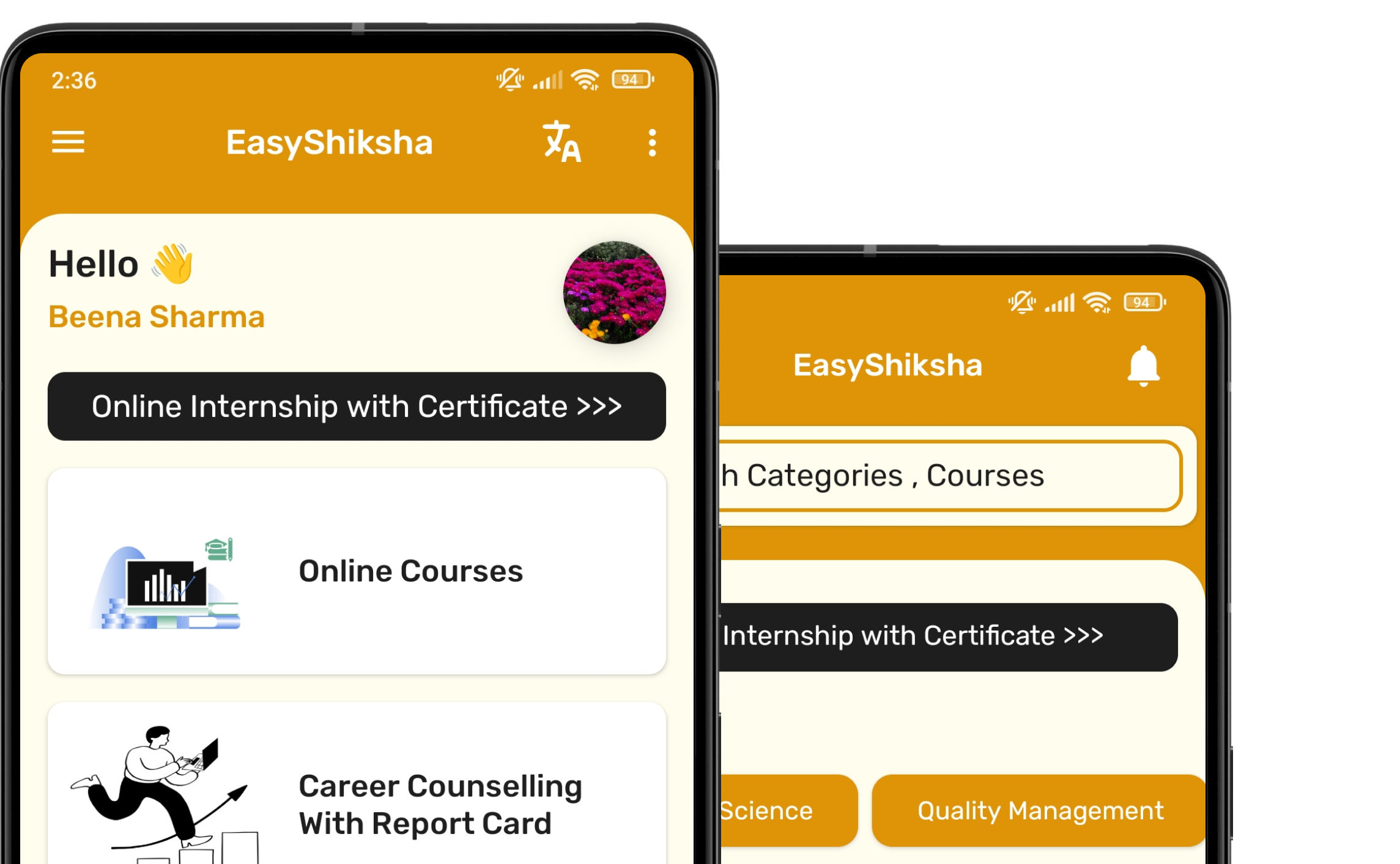


1 million+ learned on the EasyShiksha App
Trusted by Standards & Global Compliance Frameworks





Built under internationally recognized standards for quality, information security, educational excellence and business continuity.
ISO 9001:2015 | ISO/IEC 27001:2022 | ISO 21001:2018 | ISO 22301:2019 | DPIIT Recognized Startup | MSME Registered