









Join thousands of students achieving their dreams with expert-led courses.
Join free and unlock everything on EasyShiksha.
Takes less than 3 seconds — no password needed
Please enter a valid email address.
Checking your email…
Almost done — just verify your number so we can send course updates and certificates.
Used only for verification & updates
Incorrect OTP. Please try again.
Takes less than 10 seconds
Please select your country.
Please select your state.
Modern websites are expected to provide smooth navigation and engaging visual experiences. When users move between pages, open product details, switch dashboard views or browse image galleries, sudden changes in content can make the interface feel disconnected.
Traditionally, developers created these effects using JavaScript animation libraries, CSS transitions and custom page-navigation logic. Although these techniques remain useful, implementing transitions between different interface states can require considerable code.
The View Transitions API provides a browser-native approach to creating animated transitions between different visual states of a website.
It can animate changes inside a single-page application (SPA) and, in supported browsers, transitions between separate pages in a multi-page application (MPA).
This article explains how the View Transitions API works, its main methods, CSS features, implementation techniques, React integration, practical applications and performance considerations.
The View Transitions API is a browser technology that allows developers to create animated transitions between different document or interface states.
It captures visual snapshots of the old and new states and provides CSS pseudo-elements that developers can animate.
For example, imagine an online shopping website where a user selects a product from a product grid. Instead of immediately replacing the grid with a product details page, the selected product image can smoothly expand into its new position.
The API supports two major transition categories:
Same-document transitions: Used when the content changes within the same document, commonly in single-page applications.
Cross-document transitions: Used when navigating between separate documents, commonly in multi-page websites.
The main JavaScript method for starting a same-document transition is:
document.startViewTransition()
if (document.startViewTransition) {
    document.startViewTransition(() => {
        document.querySelector("#content").textContent =
            "Welcome to the new page";
    });
} else {
    document.querySelector("#content").textContent =
        "Welcome to the new page";
}
The browser captures the existing view, executes the DOM update and animates the transition to the updated view.
When the API is unavailable, the example still updates the content without the animation.
Traditional page changes can appear abrupt, particularly when an application contains multiple views and dynamic content.
The View Transitions API helps developers create continuity between these states.
Its main benefits include:
Smooth navigation: Adds visual transitions between pages and interface states.
Reduced animation complexity: Provides browser-managed snapshots and transition elements.
Element continuity: Allows selected elements to animate independently between old and new positions.
SPA integration: Works with JavaScript-driven DOM updates.
MPA integration: Supports transitions between eligible same-origin documents.
Custom animations: Developers can control transition effects using CSS.
Progressive enhancement: Applications can provide normal navigation or updates when the API is unavailable.
It is particularly useful for image galleries, product pages, dashboards, content websites and applications with frequent view changes.
The transition process involves several stages.
For a same-document transition, developers call document.startViewTransition() and provide a callback that performs the DOM update.
document.startViewTransition(() => {
    updatePageContent();
});
For a cross-document transition, eligible navigation between two opted-in pages triggers the transition.
The browser captures snapshots of the current visual state.
Elements with appropriate view-transition-name values can participate in individual transitions.
The browser performs the DOM update supplied through the callback in a same-document transition.
For cross-document transitions, navigation takes the user to the destination document.
After the update, the browser captures the new visual state.
It uses the old and new snapshots to construct the transition presentation.
The browser creates a pseudo-element structure for the transition.
By default, the old view fades out while the new view fades in.
Developers can customise this behaviour using CSS animations and view-transition pseudo-elements.
When the animation finishes, the temporary transition presentation is removed.
The new interface remains visible and interactive.
Same-document transitions happen within a single HTML document.
They are especially useful in SPAs where JavaScript updates the content without performing a full document navigation.
Common examples include:
Switching dashboard sections.
Opening product details.
Changing gallery images.
Expanding content.
Updating application views.
Changing selected tabs.
The basic implementation uses:
document.startViewTransition(() => {
    // Update the DOM here
});
The browser captures the old view before executing the update callback.
Cross-document transitions happen when a user navigates between separate HTML documents.
They are particularly useful for traditional multi-page websites.
Both participating documents must be eligible and opt in to the transition.
The CSS configuration is:
@view-transition {
    navigation: auto;
}
This rule must be included in the stylesheets of both the source and destination documents.
The navigation must also satisfy the browser's same-origin and other eligibility requirements.
Unlike same-document transitions, developers do not call document.startViewTransition() to initiate a cross-document transition. The eligible navigation triggers it.
Element-scoped transitions allow developers to limit the transition scope to a particular element and its descendants.
Where supported, the relevant method is:
element.startViewTransition()
This is useful when only a particular section of a page needs to transition rather than the entire document.
For example, a dashboard may animate a content panel while leaving its navigation and surrounding interface unchanged.
This method starts a same-document view transition.
const transition = document.startViewTransition(() => {
    updateContent();
});
The callback performs the DOM changes that should be animated.
The method returns a ViewTransition object that provides access to different stages of the transition.
It also supports an options object with an update callback and transition types.
The ViewTransition object represents an active transition.
It provides several important properties and methods.
updateCallbackDone
A promise that fulfills when the update callback has completed successfully.
ready
A promise that fulfills when the transition pseudo-element structure has been created and the transition is ready to begin.
It may reject if the transition cannot be started.
finished
A promise that fulfills when the transition has finished and the new view is available.
skipTransition()
Allows developers to skip the animation while still allowing the DOM update to complete.
types
Provides access to the transition's type information.
waitUntil()
Allows additional asynchronous work to be associated with the transition's completion lifecycle.
These features are useful when applications need to coordinate animations with other operations.
const transition = document.startViewTransition(() => {
    updateContent();
});

transition.ready.then(() => {
    console.log("Transition is ready");
});

transition.finished.then(() => {
    console.log("Transition completed");
});
Developers should also handle rejected promises when custom transition logic depends on successful animation setup.
The View Transitions API introduces CSS properties, at-rules and pseudo-elements that control how transitions appear.
The view-transition-name property identifies an element that should participate in a separately named transition.
.product-image {
    view-transition-name: product-image;
}
When the same name is assigned to corresponding elements in the old and new states, the browser can animate the visual change between them.
Names must be unique among simultaneously participating elements within the relevant transition scope.
This pseudo-element represents the root of the transition overlay.
It contains the visual elements used to animate between states.
::view-transition {
    background: transparent;
}
It can be used to style the overall transition presentation.
This pseudo-element represents the old visual snapshot.
::view-transition-old(root) {
    animation: fade-out 250ms ease;
}
It allows developers to control how the previous view disappears.
This pseudo-element represents the new visual state.
::view-transition-new(root) {
    animation: fade-in 250ms ease;
}
It allows developers to customise how the updated view appears.
This pseudo-element represents the group associated with a named transition.
It can be used to control properties such as the group's animation and positioning behaviour.
The @view-transition at-rule enables eligible cross-document transitions.
@view-transition {
    navigation: auto;
}
This is mainly used for multi-page website navigation.
The view-transition-class property allows developers to apply common styling to transition groups that share a class.
It is useful when several elements require similar transition behaviour without assigning identical transition names.
The following example creates a simple interface that changes its content using a View Transition.
<div class="app">
    <h1>View Transition Demo</h1>

    <div id="content" class="content">
        <h2>Welcome</h2>
        <p>This is the first view.</p>
    </div>

    <button id="change">Change View</button>
</div>.app {
max-width: 650px;
margin: 40px auto;
padding: 25px;
text-align: center;
}
.content {
padding: 35px;
background: #e8f0ff;
border-radius: 12px;
margin: 25px 0;
}
button {
padding: 12px 20px;
cursor: pointer;
border: none;
border-radius: 6px;
}
::view-transition-old(root) {
animation: fade-out 250ms ease forwards;
}
::view-transition-new(root) {
animation: fade-in 250ms ease forwards;
}
@keyframes fade-out {
from {
opacity: 1;
}
to {
opacity: 0;
}
}
@keyframes fade-in {
from {
opacity: 0;
}
to {
opacity: 1;
}
}const content = document.querySelector("#content");
const button = document.querySelector("#change");
let isSecondView = false;
button.addEventListener("click", () => {
const updateContent = () => {
if (isSecondView) {
content.innerHTML = `
<h2>Welcome</h2>
<p>This is the first view.</p>
`;
} else {
content.innerHTML = `
<h2>New View</h2>
<p>The content has changed smoothly.</p>
`;
}
isSecondView = !isSecondView;
};
if (document.startViewTransition) {
document.startViewTransition(updateContent);
} else {
updateContent();
}
});When the button is clicked, the interface switches between two views.
Supporting browsers animate the change, while other browsers perform the content update normally.
One of the most interesting capabilities is animating an individual element between its old and new positions.
For example, a product image may appear in a small product card and then transition into a larger image on the product details view.
The same transition name should be applied to the corresponding elements.
.product-image {
    view-transition-name: selected-product;
}

::view-transition-old(selected-product),
::view-transition-new(selected-product) {
    animation-duration: 400ms;
    animation-timing-function: ease-in-out;
}
The application should ensure that only one participating element uses a particular transition name within the same transition scope at a time.
This technique can create visual continuity between different layouts.
React developers can use the API when changing views or application content.
The following example demonstrates a button that updates a component's state inside a view transition.
import { useState } from "react";

function ViewSwitcher() {
    const [page, setPage] = useState("home");

    function changePage() {
        const update = () => {
            setPage((current) =>
                current === "home" ? "about" : "home"
            );
        };

        if (document.startViewTransition) {
            document.startViewTransition(update);
        } else {
            update();
        }
    }

    return (
        <div className="container">
            <div className="page-content">
                {page === "home" ? (
                    <h2>Home Page</h2>
                ) : (
                    <h2>About Page</h2>
                )}
            </div>

            <button onClick={changePage}>
                Switch Page
            </button>
        </div>
    );
}

export default ViewSwitcher;
The React state update is performed inside the transition callback.
In production applications, developers should also consider:
Managing overlapping transition requests.
Handling rejected transition promises.
Avoiding unnecessary component remounting.
Keeping transition names unique.
Respecting reduced-motion preferences.
Providing a fallback for unsupported browsers.
The default transition is a cross-fade, but developers can create different visual effects through CSS.
A fade transition gradually changes the visibility of the old and new views.
::view-transition-old(root) {
    animation: fade-out 300ms ease;
}

::view-transition-new(root) {
    animation: fade-in 300ms ease;
}A slide transition moves the previous view away and brings the new view into position.
@keyframes slide-out {
    to {
        transform: translateX(-30px);
        opacity: 0;
    }
}

@keyframes slide-in {
    from {
        transform: translateX(30px);
        opacity: 0;
    }
}

::view-transition-old(root) {
    animation: slide-out 300ms ease;
}

::view-transition-new(root) {
    animation: slide-in 300ms ease;
}A scale transition changes the size of the old and new visual states.
@keyframes scale-out {
    to {
        transform: scale(0.95);
        opacity: 0;
    }
}

@keyframes scale-in {
    from {
        transform: scale(1.05);
        opacity: 0;
    }
}

::view-transition-old(root) {
    animation: scale-out 250ms ease;
}

::view-transition-new(root) {
    animation: scale-in 250ms ease;
}
The choice of animation should depend on the interface and the amount of movement users need to process.
View transition types allow developers to identify different kinds of transitions and apply different CSS rules.
For example, a gallery might use different animations when moving forward or backward.
A same-document transition can specify types through the options object:
document.startViewTransition({
    update: () => {
        updateGallery();
    },
    types: ["gallery-forward"]
});
CSS can then target the active transition type.
:active-view-transition-type(gallery-forward) {
    /* Styles for this transition type */
}
Transition types are useful for navigation direction, adding or removing items and other interface-specific behaviours.
The View Transitions API can also improve navigation between traditional HTML pages.
For example, a content website may contain:
A homepage.
An article listing page.
Individual article pages.
Category pages.
A conventional navigation loads a different document. Cross-document view transitions can provide continuity between the old and new pages.
@view-transition {
    navigation: auto;
}@view-transition {
navigation: auto;
}Both documents must opt in, and the navigation must meet the browser's eligibility requirements, including the same-origin requirement.
A user clicking a qualifying link can then experience an animated transition between the pages.
This approach is useful because it does not require manually creating a JavaScript navigation system.
Animations can improve visual continuity, but excessive movement may create accessibility problems for some users.
Developers should respect the operating system's reduced-motion preference.
For example:
@media (prefers-reduced-motion: reduce) {
    ::view-transition-old(root),
    ::view-transition-new(root) {
        animation-duration: 0.01ms;
        animation-iteration-count: 1;
    }
}
Other accessibility recommendations include:
Keep animations short and purposeful.
Avoid unnecessary zooming and large movements.
Maintain readable text during transitions.
Ensure the new content remains accessible.
Avoid delaying important user interactions.
Provide normal navigation when animation is unavailable.
A smooth transition should improve usability rather than become an obstacle.
Product cards can transition into detailed product views while maintaining visual continuity.
Images can move smoothly between thumbnail and full-screen layouts.
Article listings and individual article pages can use cross-document transitions to make navigation feel more connected.
Switching between dashboard sections can become visually smoother.
Selected hotel rooms, destinations or booking details can transition between summary and detail views.
Project thumbnails can transition into individual project presentations.
Video thumbnails, audio artwork and media details can use element-specific transitions.
Applications with frequently changing views can use transitions to make state changes easier to follow.
The View Transitions API has expanded significantly, but support depends on the type of transition and browser version.
Important distinctions include:
Same-document transitions became available in Chromium-based browsers starting with Chrome 111.
Cross-document transitions became available in Chromium-based browsers starting with Chrome 126.
The document.startViewTransition() method reached Baseline 2025 status for newer browser versions.
Some CSS features and advanced transition capabilities may have different compatibility levels.
Older browsers may not support the API or every available feature.
Developers should check current browser compatibility before depending on specific transition features.
Feature detection is recommended:
if ("startViewTransition" in document) {
    console.log("View Transitions API supported");
} else {
    console.log("Use normal content updates");
}
For cross-document transitions, the CSS @view-transition feature must also be supported by the browser.
Complex pages containing large images, multiple animations and numerous participating elements may require additional rendering resources.
Developers should avoid unnecessary transition elements.
Starting multiple transitions rapidly can create confusing behaviour.
Applications should manage repeated user actions and handle active transition states carefully.
Duplicate names among simultaneously participating elements within the same scope can cause transition problems.
Use unique and meaningful names.
A transition does not make a slow application update faster.
If the DOM update callback takes too long, the visual transition may be delayed or skipped.
Not all users have access to every View Transitions API feature.
Applications should provide a working non-animated fallback.
Long or excessive animations can negatively affect usability.
Respect reduced-motion settings and avoid unnecessary movement.
Large structural changes may require careful control of transition names and CSS animations to avoid unexpected visual results.
Developers should follow these recommendations:
Use feature detection before calling document.startViewTransition().
Keep DOM update callbacks efficient.
Assign unique transition names to corresponding elements.
Use CSS for straightforward animations.
Use JavaScript only when additional transition control is necessary.
Avoid starting unnecessary overlapping transitions.
Provide a normal navigation or content-update fallback.
Respect reduced-motion preferences.
Test both same-document and cross-document transitions.
Check browser compatibility for advanced features.
Avoid animating every element on the page.
Keep transitions short and meaningful.
Build a shopping interface with multiple product cards.
When a user selects a product, animate its image from the card into the product detail section.
Create a gallery where users can move between images using previous and next buttons.
Use transition types to apply different effects for forward and backward navigation.
Build a small website with an article listing page and separate article pages.
Enable cross-document transitions on eligible same-origin navigations.
Create a dashboard with multiple sections and use same-document transitions when switching between views.
Create a project gallery where each project card transitions into a detailed project presentation.
Developers should understand:
HTML and CSS fundamentals.
JavaScript DOM manipulation.
CSS animations and keyframes.
JavaScript promises.
Single-page and multi-page application architecture.
Browser APIs.
React state management, where applicable.
Responsive web design.
Accessibility fundamentals.
Browser compatibility testing.
Knowledge of CSS animations and JavaScript DOM updates is particularly useful when creating custom transitions.
Knowledge of the View Transitions API can strengthen frontend development skills, particularly for developers building interactive interfaces.
Its concepts are relevant to roles such as:
Frontend Developer.
JavaScript Developer.
React Developer.
UI Engineer.
Web Application Developer.
Interactive Web Designer.
Full Stack Developer.
The API is a specialised browser technology rather than a standalone professional qualification. Its value comes from using it effectively as part of modern frontend development.
A practical learning sequence can help developers understand the technology.
Learn CSS animations: Understand keyframes, transforms, opacity and animation timing.
Understand DOM updates: Practise changing content using JavaScript.
Explore the basic API: Learn document.startViewTransition().
Study the ViewTransition object: Experiment with its promises and methods.
Learn transition pseudo-elements: Practise styling old and new snapshots.
Explore named transitions: Use view-transition-name to animate individual elements.
Build an SPA example: Create animated transitions between application views.
Build an MPA example: Test cross-document transitions between eligible pages.
Study accessibility and compatibility: Add reduced-motion support and fallback behaviour.
Developers interested in frontend development can explore EasyShiksha Online Courses, browse the EasyShiksha course directory and explore the Web Development Course.
The View Transitions API provides a browser-native approach to creating animated transitions between different interface states and web pages.
It supports same-document transitions for single-page applications and cross-document transitions for eligible multi-page navigation. Developers can customise these effects using JavaScript methods, CSS properties, pseudo-elements and transition types.
When used carefully, the API can improve visual continuity across product pages, dashboards, image galleries and content websites.
By combining feature detection, efficient DOM updates, accessible animations and appropriate browser fallbacks, developers can create smoother and more maintainable web experiences.
The View Transitions API is a browser feature that creates animated transitions between different visual states of a website, including changes within a document and eligible navigation between documents.
It is a JavaScript method that starts a same-document view transition. Developers provide a callback containing the DOM update that should be animated.
Same-document transitions occur within one HTML document. They are commonly used in single-page applications when JavaScript changes the displayed content without loading another document.
Cross-document transitions occur between separate HTML documents. Both documents must opt in, and the navigation must satisfy the browser's eligibility requirements, including being same-origin.
It is an object returned by document.startViewTransition() that provides access to transition lifecycle promises, transition types and methods for controlling the animation.
The view-transition-name CSS property identifies elements that should participate in separately named transitions. It helps create visual continuity between corresponding elements in different interface states.
It is a CSS pseudo-element representing the previous visual snapshot during a transition. Developers can customise how the old view disappears.
It represents the new visual state during a transition. Developers can use it to customise how updated content appears.
The @view-transition CSS at-rule allows a document to opt in to eligible cross-document view transitions using the navigation: auto descriptor.
Yes. Developers can call document.startViewTransition() around React state updates to animate changes between component views.
No. The browser provides the transition mechanism and CSS pseudo-elements. Animation libraries can still be used for additional effects or custom application requirements.
SPA transitions animate DOM updates within the same document, while MPA transitions animate eligible navigation between separate documents.
Yes. Developers can customise the old and new transition pseudo-elements using CSS animations, transforms, opacity and other supported styling properties.
It is a CSS property that allows common styling to be applied to transition groups through a shared class, helping organise animations across multiple elements.
Transition types identify the kind of transition currently taking place. They allow developers to apply different CSS or JavaScript behaviour for actions such as moving forward, moving backward or changing gallery content.
Cross-document view transitions require eligible same-origin navigation. Navigation between unrelated origins cannot be treated as a normal cross-document view transition under the current model.
The application should perform its normal DOM update or page navigation without the animation. Feature detection allows developers to provide this fallback.
It can simplify animation implementation and improve perceived continuity, but it does not automatically make a website faster. Large snapshots, expensive DOM updates and complex animations can still affect rendering performance.
Developers can use the prefers-reduced-motion media query to reduce or disable transition animations for users who have requested less motion.
It is useful when developers want smooth visual changes between application views, product details, gallery images or eligible page navigations without building an entire transition system from scratch.
More News Click here





Discover thousands of colleges and courses, enhance skills with online courses and internships, explore career alternatives, and stay updated with the latest educational news..

Gain high-quality, filtered student leads, prominent homepage ads, top search ranking, and a separate website. Let us actively enhance your brand awareness.
Download EasyShiksha Mobile Apps from Android Play Store, Apple App Store, Amazon App Store, and Jio STB.
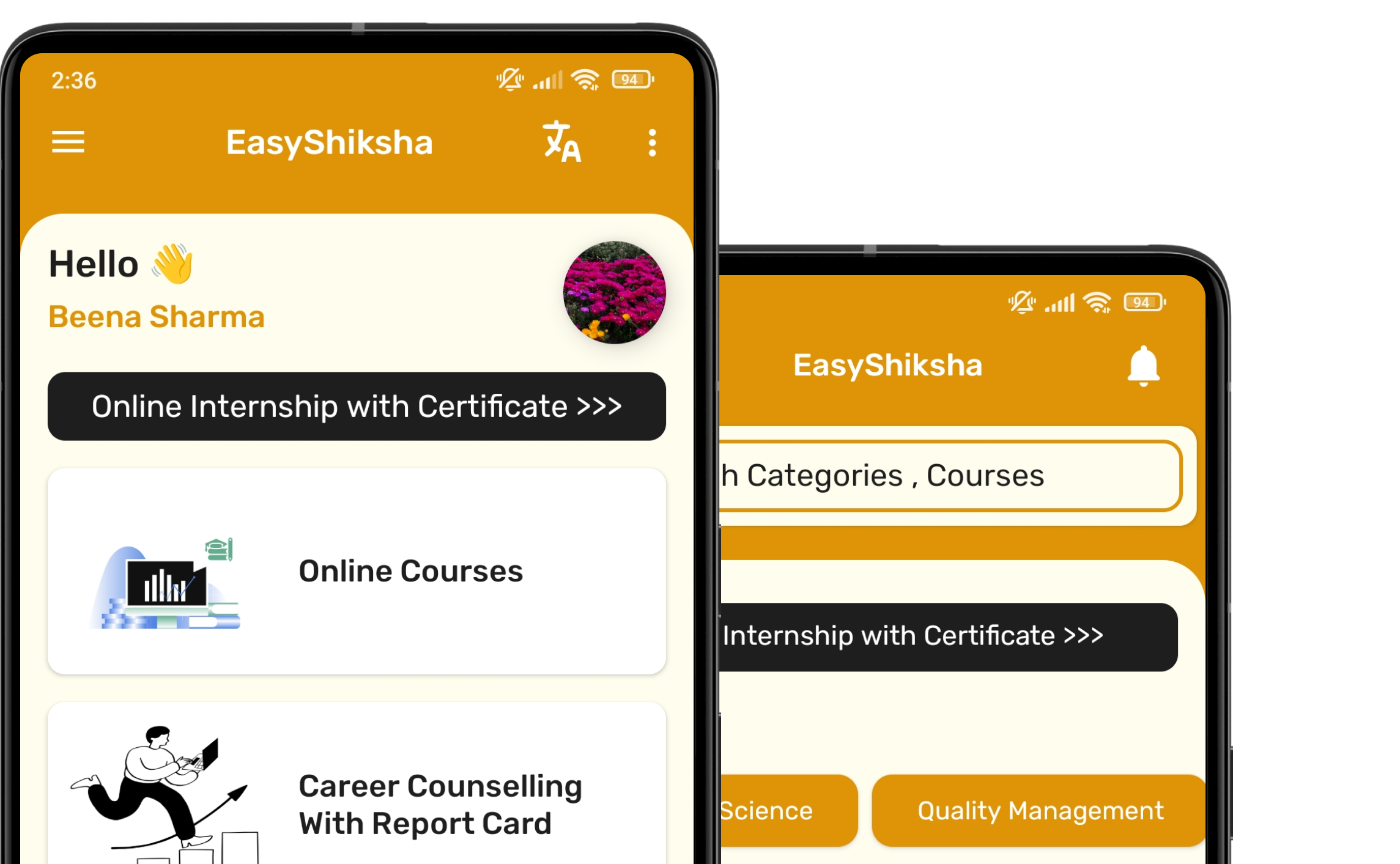


1 million+ learned on the EasyShiksha App
Trusted by Standards & Global Compliance Frameworks





Built under internationally recognized standards for quality, information security, educational excellence and business continuity.
ISO 9001:2015 | ISO/IEC 27001:2022 | ISO 21001:2018 | ISO 22301:2019 | DPIIT Recognized Startup | MSME Registered