







Join thousands of students achieving their dreams with expert-led courses.
Join free and unlock everything on EasyShiksha.
Takes less than 3 seconds — no password needed
Please enter a valid email address.
Checking your email…
Almost done — just verify your number so we can send course updates and certificates.
Used only for verification & updates
Incorrect OTP. Please try again.
Takes less than 10 seconds
Please select your country.
Please select your state.

Online examinations have made it possible for students to take assessments remotely, but some exams require more preparation than simply opening a website and answering questions. An online proctored exam may use a webcam, microphone, screen monitoring or a secure browser to supervise the examination.
For students taking an online university assessment, certification exam, entrance test or remote examination, technical problems can be as stressful as the questions themselves. An unsupported browser, unstable internet connection, blocked camera permission or an unclear exam rule may interrupt the experience.
The best way to reduce these risks is to understand the examination instructions in advance, test your equipment and prepare a backup plan. This guide explains how online proctored exams work, what to check before starting, how to protect your privacy and what to do if a technical issue occurs.
An online proctored exam is an assessment supervised remotely to help maintain examination rules and academic integrity. Depending on the institution and exam provider, supervision may be conducted by a live human proctor, automated software or a combination of both.
Common monitoring arrangements include:
Live proctoring: A human supervisor observes the candidate remotely, often through a webcam and microphone.
Automated proctoring: Software may flag certain activities or behaviours for review.
Recorded proctoring: Video, audio or screen activity may be recorded for later review, subject to the exam provider's arrangements.
Secure-browser examinations: Candidates use a specified browser or application that restricts certain computer functions during the test.
Not every online examination uses all these methods. Some exams require only a login and a timed assessment, while others have detailed identity-verification and room-check procedures.
Always read the instructions for your specific examination instead of assuming that the rules are the same everywhere.
Before installing software or changing your computer settings, read the official exam guide, confirmation email and candidate instructions.
Identify the following details:
| What to check | Why it matters |
|---|---|
| Exam date and start time | Helps you arrive at the correct time and account for any stated time zone |
| Login or check-in window | Some platforms require candidates to check in before the exam begins |
| Permitted devices | The examination may require a laptop or desktop rather than a mobile phone |
| Browser or application | The exam may work only with a specified browser or secure application |
| Camera and microphone requirements | These may be needed for identity verification or monitoring |
| Identification requirements | The provider may specify acceptable identification documents |
| Room and desk rules | Some exams require a clear workspace or a room check |
| Permitted materials | Notes, calculators, headphones or additional monitors may be restricted |
| Technical support details | Helps you report a problem quickly if the exam is interrupted |
Pay particular attention to prohibited actions. For example, an examination may restrict switching tabs, using a second screen, opening other applications or leaving the camera view.
If a rule is unclear, ask the exam administrator before the examination date. Do not rely only on advice from social media or another candidate who took a different exam.
Your device should meet the examination provider's published technical requirements.
Start by checking the operating system, browser version, memory, storage and any required software. If the provider supplies a system compatibility test, run it on the same device you plan to use for the actual examination.
Confirm that your device meets the minimum system requirements.
Install the supported browser or required examination application.
Update the browser and operating system in advance, if appropriate.
Restart the device before the test day if updates or installations require it.
Check that the camera and microphone work.
Confirm that you can access the examination website.
Keep the device connected to its charger.
Remove unnecessary accessories or external displays if the exam rules prohibit them.
Do not wait until a few minutes before the exam to install a secure browser or perform a major system update. Installation problems, permission requests and restart requirements can take longer than expected.
If you use a shared computer, confirm that you have permission to install the required software and that no personal files or applications will interfere with the examination.
An unstable internet connection can interrupt login, identity verification, video monitoring or answer submission.
A high download speed alone does not guarantee a reliable connection. Connection stability, latency, packet loss and the quality of your Wi-Fi signal may also matter.
Before the exam:
Run the provider's official connectivity test, if available.
Test the connection from the location where you will sit the exam.
Move closer to the router if the signal is weak.
Pause large downloads, cloud backups and streaming on your network.
Ask others using the same connection to avoid bandwidth-heavy activities during the exam.
Keep a mobile hotspot available as a possible backup, if permitted and practical.
A mobile hotspot is not a guaranteed solution. Network coverage may vary, and switching connections during an examination may be prohibited or may disconnect the session.
Check the exam rules before relying on a backup connection. If the exam requires a particular network configuration, follow those instructions.
Many remotely supervised examinations require a working camera and microphone. Some platforms also require candidates to show their surroundings or position their camera in a specific way.
Test both devices before the examination.
Confirm that the camera produces a clear image.
Clean the camera lens.
Check that your face is visible under the available lighting.
Position the camera according to the provider's instructions.
Close other applications that may be using the camera.
Check whether the exam requires a built-in or external camera.
Confirm that the correct microphone is selected.
Test whether the system can detect your voice.
Check operating-system privacy settings.
Close other applications that may be using the microphone.
Confirm whether headphones or headsets are allowed.
A camera or microphone may work in one application but remain blocked in the browser. Check the browser's site permissions as well as the operating system's privacy settings.
If the examination platform provides a test session, complete it before exam day. This helps identify problems while there is still time to contact support.
Your examination space should meet the provider's requirements and allow you to concentrate without unnecessary interruptions.
Choose a location with adequate lighting, a stable desk and a comfortable chair. Position the screen so you can work naturally without repeatedly adjusting the camera.
Before starting, check whether the exam requires you to:
Sit alone in a room.
Keep the desk clear of unauthorised materials.
Remove additional monitors or electronic devices.
Keep doors closed or minimise interruptions.
Show the room or desk to a proctor.
Keep your face visible throughout the test.
These requirements vary. Do not assume that every proctored exam requires an empty room or a particular camera angle.
If you live in a shared household or hostel, explain your examination time to the people around you and request a quiet environment. Silence unnecessary notifications on other devices and avoid placing a phone within reach unless the instructions require it.
If you need an accommodation because of a disability or another documented requirement, contact the examination provider well in advance. Do not wait until check-in to request a change that may require approval.
Online proctoring can involve personal information such as identification details, webcam video, microphone audio and screen activity. Understanding the provider's procedures helps you prepare without compromising your privacy.
Before the examination, review the provider's official privacy notice and candidate instructions.
Look for information about:
What information is collected.
Whether video or audio is recorded.
Whether screen activity is monitored.
How identity documents are verified.
Who may access examination records.
How long relevant data is retained.
How to contact the provider with privacy questions.
Some providers may use automated systems to flag activity for review. A flag does not necessarily establish that a candidate has violated the rules; the provider's review process and policies determine how such events are handled.
Use only the official examination website or application. Avoid uploading identification documents to unverified links or sending them to unknown individuals claiming to provide technical support.
If you have privacy concerns, ask the institution or exam provider about its procedures before the exam. Where applicable, request information about approved alternatives or accommodations.
A system check is different from a practice test, although some providers offer both.
A system check verifies whether your device, browser, camera, microphone and internet connection meet the technical requirements.
A practice test helps you understand the examination interface, question navigation, answer saving and timing.
If available, complete both.
During the system check, confirm that the exam website opens correctly and that all required permissions are granted. During the practice test, learn how to move between questions, mark questions for review, save responses and submit the assessment.
Do not assume that the practice environment will be identical to the real examination. Some settings, restrictions or monitoring procedures may differ.
For broader academic preparation, students can also explore EasyShiksha's guide to effective lecture notes, which covers ways to organise information for later revision.
Once the exam begins, follow the instructions displayed by the platform and any directions given by the live proctor.
Common rules may include:
Staying within the permitted examination environment.
Avoiding unauthorised applications, websites or communication tools.
Not receiving assistance from another person.
Keeping the camera positioned as instructed.
Using only permitted notes, calculators or reference materials.
Avoiding unauthorised screen sharing, recording or copying.
Following the provider's instructions for breaks and emergencies.
If your examination permits a calculator, reference sheet or other resource, verify the exact requirements before using it.
Do not try to bypass the secure browser or monitoring system. Attempting to disable restrictions may interrupt the exam or violate its rules.
If you accidentally click the wrong control, receive an unexpected notification or experience a legitimate technical issue, follow the provider's stated procedure. If a live proctor is available, inform them rather than attempting an unauthorised workaround.
Technical problems can occur even when you have prepared carefully. The safest response is to follow the official recovery process and avoid actions that could jeopardise your examination session.
| Problem | What to do |
|---|---|
| Exam page will not load | Check the official system requirements and connection, then follow the provider's troubleshooting instructions |
| Camera is not detected | Check browser and system permissions, close competing applications and retest if permitted |
| Microphone does not work | Confirm the selected input device and microphone permissions |
| Secure browser will not launch | Check the provider's installation guide and supported operating system |
| Connection drops | Follow the official reconnection procedure and contact support if necessary |
| Login fails | Verify the exam link, candidate credentials and permitted login window |
| Exam freezes | Avoid repeatedly clicking buttons; follow the provider's instructions and report the interruption |
| Submission confirmation is missing | Check the platform's stated submission procedure and contact the exam administrator |
| Proctor cannot verify identity | Follow the requested verification steps and use official support if the problem persists |
Do not uninstall the secure browser, restart repeatedly or open prohibited applications while an active examination is running unless the provider's instructions or support team direct you to do so.
If the exam is interrupted, record the approximate time, the error message and any support ticket number. Keep screenshots only if permitted by the examination rules. Some exams prohibit screenshots, screen recording or photography, so check before capturing anything.
A disconnection can be particularly stressful when the examination has a strict time limit.
First, follow the provider's published reconnection instructions. Some platforms allow the candidate to resume the session, while others require help from a proctor or administrator.
If you cannot reconnect:
Use the official technical support channel.
Provide your candidate ID or examination reference as requested.
Explain when the interruption occurred.
State whether you could see the exam timer or whether answers appeared to be saved.
Record the support ticket number and any instructions provided.
Notify the exam administrator if the incident affects your ability to finish.
Do not assume that your remaining time will automatically be restored or that the examination will be rescheduled. Those decisions depend on the examination provider's policies and the circumstances of the incident.
If you believe the interruption affected your result, submit a factual written report promptly and ask what review or appeal process is available.
After completing the assessment, wait for the platform's submission confirmation and follow the instructions for ending the session.
Where the provider allows it, confirm that the exam has been submitted successfully. Some platforms display a confirmation page, submission reference or status in the candidate dashboard.
Keep any permitted confirmation email or receipt. If no confirmation appears, contact the examination provider using the official support process rather than assuming that the assessment was submitted.
Do not share exam questions, screenshots or recordings if the examination rules prohibit disclosure. Keep your login credentials private and sign out of any shared device when the process is complete.
If you experienced a technical problem, save your notes about the incident and submit the report within the provider's stated deadline.
Use this checklist before your next remotely supervised examination.
I have read the official exam rules.
I know the date, start time and check-in window.
My computer meets the technical requirements.
The required browser or application is installed.
My internet connection is stable.
My webcam and microphone work.
The required browser permissions are enabled.
My examination space meets the rules.
I know which materials and devices are permitted.
I have completed the available system test or mock exam.
I know how to contact official technical support.
I understand what to do if the session disconnects.
I know how to confirm that my answers have been submitted.
Complete these checks early enough to resolve problems before the scheduled start time.
Requirements depend on the examination provider. They may include a compatible computer, supported browser or secure application, reliable internet connection, webcam, microphone, acceptable identification and a suitable examination environment. Check the official instructions for the exact requirements.
Some examination platforms support mobile devices, but others require a laptop or desktop. Use a phone only if the provider explicitly permits it and confirms that the device meets the requirements.
That depends on the exam rules. Some providers allow certain audio devices, while others restrict headphones or headsets. Confirm the policy before the exam instead of assuming they are permitted.
The response depends on the platform. You may be able to reconnect, resume the session or contact a proctor. Follow the official procedure immediately and report the interruption if it affects your exam.
Some platforms monitor or record screen activity, while others use different supervision methods. Review the exam provider's candidate instructions and privacy notice to understand what is collected.
Check whether the camera is connected, selected correctly and permitted by your browser and operating system. Close other applications that may be using it and run the official system test. If the issue continues, contact technical support before the exam begins.
Do not switch tabs unless the exam instructions permit it. Some secure-browser examinations restrict navigation or flag certain activities. Follow the specific rules of your examination.
Follow the provider's recovery instructions and contact official support as soon as possible. Record the approximate time and error details, subject to the exam's rules on screenshots and recording. Ask the provider to confirm whether your responses were submitted.
Preparing for an online proctored exam involves more than studying the syllabus. Students also need to understand the rules, test their devices, check connectivity, prepare an appropriate environment and know how to seek help if a problem occurs.
The most effective approach is to complete the technical checks in advance, use only approved software and equipment, protect personal information and follow the provider's official instructions throughout the assessment.
No preparation can eliminate every technical issue, but a clear checklist and a reliable support plan can reduce avoidable disruptions and help students approach their online examinations with greater confidence.
More News Click here








Discover thousands of colleges and courses, enhance skills with online courses and internships, explore career alternatives, and stay updated with the latest educational news..

Gain high-quality, filtered student leads, prominent homepage ads, top search ranking, and a separate website. Let us actively enhance your brand awareness.
Download EasyShiksha Mobile Apps from Android Play Store, Apple App Store, Amazon App Store, and Jio STB.
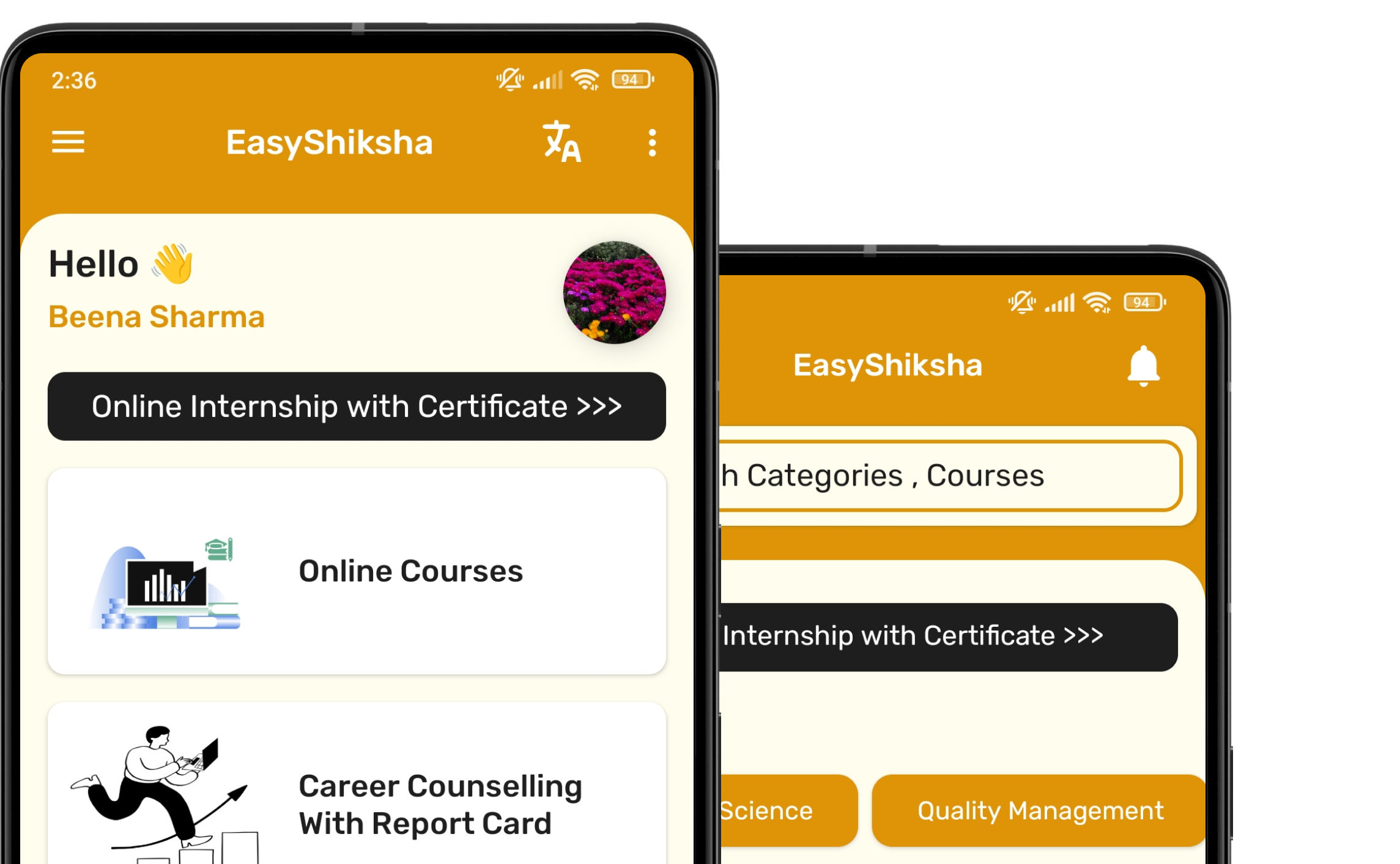


1 million+ learned on the EasyShiksha App
Trusted by Standards & Global Compliance Frameworks





Built under internationally recognized standards for quality, information security, educational excellence and business continuity.
ISO 9001:2015 | ISO/IEC 27001:2022 | ISO 21001:2018 | ISO 22301:2019 | DPIIT Recognized Startup | MSME Registered