










Join thousands of students achieving their dreams with expert-led courses.
Join free and unlock everything on EasyShiksha.
Takes less than 3 seconds — no password needed
Please enter a valid email address.
Checking your email…
Almost done — just verify your number so we can send course updates and certificates.
Used only for verification & updates
Incorrect OTP. Please try again.
Takes less than 10 seconds
Please select your country.
Please select your state.

Software development involves more than writing code. Developers frequently modify existing files, fix bugs, experiment with new features and collaborate with other programmers. Without a reliable way to track these changes, it can become difficult to understand what changed, recover earlier work or combine contributions from different team members.
Git and GitHub help solve these problems. Git tracks changes to files, while GitHub provides an online platform for hosting Git repositories and collaborating on software projects.
For Bachelor of Computer Applications (BCA) students, learning these tools can make academic projects easier to manage and help prepare them for internships and software development roles. This guide explains Git fundamentals, essential commands, GitHub workflows, collaboration practices and practical projects for beginners.
Git is a distributed version control system used to record changes to files over time. It allows developers to create checkpoints, compare versions, experiment with separate branches and recover earlier versions of their work.
For example, imagine a student developing a college management application. The student first creates a login page, then adds student registration and later modifies the database integration. If a change breaks the application, Git can help identify the relevant changes and restore an appropriate earlier version.
Git maintains a repository containing project files and their recorded history. Because it is distributed, developers can work with local repository history without needing a constant connection to a central server.
Git can help students:
Track changes made to programming assignments.
Recover earlier versions of project files.
Experiment with features without immediately changing the main development line.
Work with classmates on group assignments.
Review code changes before combining them.
Maintain a history of project development.
Share source code through repository-hosting platforms.
Students exploring computer application programmes can also review the BCA programme directory on EasyShiksha to compare available programmes and their published curricula.
GitHub is an online platform for hosting Git repositories and supporting collaborative software development. It provides features such as code browsing, issue tracking, pull requests, project discussions and automated workflows.
A developer can create a repository on GitHub, push a local Git project to it and invite other contributors to participate.
Git and GitHub are related, but they are not the same thing.
| Comparison factor | Git | GitHub |
|---|---|---|
| Main purpose | Track changes to files and project history | Host repositories and support collaboration |
| Where it operates | Primarily on a local computer, but can also work with remote repositories | Online platform with web-based collaboration features |
| Internet required | Not for ordinary local Git operations | Usually required for hosted collaboration |
| Main features | Commits, branches, merges and history | Pull requests, issues, code review and repository hosting |
| Example | Save a local checkpoint of a project | Share the project with classmates or an interviewer |
A student can use Git without GitHub. GitHub, in turn, commonly uses Git to manage the history of hosted repositories.
Before using commands, students should understand the basic terminology.
A repository, often called a repo, contains project files and the history recorded by Git.
A repository might contain the source code for a weather application, including its JavaScript files, HTML, CSS and documentation.
The working directory is the set of files currently being edited. Changes made here are not automatically recorded as commits.
The staging area allows developers to select which changes should be included in the next commit.
For example, a student may modify the login page and the project documentation but choose to commit only the login page first.
A commit records a snapshot of the staged changes along with information such as the author, date and commit message.
A useful commit message explains the change, such as Add student registration validation.
A branch provides a separate line of development. It allows a developer to work on a feature or fix without immediately changing another branch.
For example, a student can create a login-feature branch while keeping the main branch available for stable work.
A merge combines changes from different branches. Git can often complete a merge automatically, but overlapping edits may require manual conflict resolution.
A remote repository is another copy of a Git repository that can be accessed through a remote address. GitHub commonly hosts remote repositories used by students and development teams.
A pull request is a GitHub collaboration feature used to propose changes and request review before those changes are merged into a target branch.
It helps contributors discuss code, review modifications and identify problems before combining work.
BCA students can begin by installing Git on their computer and configuring their preferred author information.
Download Git from the official website:
After installation, open a terminal or command prompt and check whether Git is available.
git --versionIf Git is installed correctly, the terminal displays the installed version.
Next, configure the name and email address that Git should use for commit attribution.
git config --global user.name "Your Name"
git config --global user.email "your-email@example.com"
Replace the example values with your preferred author information. Use an email address appropriate for your development identity and account configuration.
These commands configure commit metadata. They do not authenticate you to GitHub.
Students do not need to memorise every Git command at the beginning. Learning a small set of commonly used commands is enough to manage basic projects.
| Command | Purpose |
|---|---|
git init |
Initialise a local Git repository |
git clone |
Copy an existing repository |
git status |
Show the current state of files |
git add |
Stage selected changes |
git commit |
Record staged changes |
git log |
View commit history |
git diff |
Compare changes |
git branch |
List or manage branches |
git switch |
Switch between branches or create one |
git merge |
Merge another branch |
git pull |
Fetch and integrate remote changes |
git push |
Send local commits to a remote repository |
The exact effect of commands can depend on the repository's state and configuration, so students should check git status regularly.
Create a folder for a small programming project.
mkdir bca-weather-app
cd bca-weather-app
Add a simple file named index.html and enter some basic HTML content.
git initThis creates a Git repository in the current folder.
git statusGit shows files that are not yet tracked or changes that have not been committed.
git add index.htmlThis stages the file for the next commit.
To stage all changes in the current directory and its subdirectories, developers often use git add .. However, review the status first so that unwanted files are not accidentally included.
git commit -m "Add initial HTML page"Git records the staged snapshot in the repository history.
git log --onelineThis displays a concise list of recorded commits.
Edit index.html, save the file and run:
git diffThis shows unstaged changes relative to the index. If changes have already been staged, git diff --staged can show the staged differences.
This workflow helps students understand how Git tracks changes before they become part of a new commit.
Once a local repository is working, students can publish it to GitHub to share the code or collaborate with others.
Visit the official website:
Create an account or sign in to an existing account.
Create a new repository and choose a suitable name, such as bca-weather-app.
Decide whether the repository should be public or private. A public repository is visible to others, so review the contents before publishing.
If you already have a local project, creating an empty remote repository can make the initial connection more straightforward.
GitHub provides repository-specific instructions for connecting a local project. A typical workflow for an existing local repository is:
git branch -M main
git remote add origin https://github.com/YOUR-USERNAME/bca-weather-app.git
git push -u origin main
Replace YOUR-USERNAME with your GitHub username and use the repository's actual remote address.
The git remote add command connects the local repository to a named remote. The git push command uploads the branch and its commits, provided authentication and permissions are configured correctly.
GitHub may require a browser-based authentication flow, a supported credential manager or SSH configuration. A GitHub account password is not generally used directly as the password for Git HTTPS operations.
Open the repository on GitHub and check that the expected files, commit history and documentation are present.
If the push fails, review the error message, remote address, authentication configuration and branch name.
Branches are useful when students want to develop a new feature without immediately changing the main development line.
Imagine a group building a college event management application. One student is working on login, while another is adding event registration.
They can create separate branches:
git switch -c login-featureThe student can make and commit login-related changes on this branch.
Another contributor can work on a separate branch, such as event-registration.
Once a feature is ready, the team can review its changes and merge the branch into the target branch.
Start from an appropriate base branch.
Create a new branch for the feature or bug fix.
Make changes and test the code.
Stage and commit the changes.
Push the branch to the remote repository.
Open a pull request if the team uses that workflow.
Review the changes and resolve feedback.
Merge the changes after the required checks pass.
This workflow helps keep work organised and makes it easier to understand which changes belong to each feature.
A merge conflict occurs when Git cannot automatically combine changes, often because different branches modify overlapping parts of the same file.
For example, two students may edit the same heading in a project README. One changes it to Student Portal, while the other changes it to College Portal.
Git may mark the conflicting section in the file with markers similar to these:
<<<<<<< HEAD
Student Portal
=======
College Portal
>>>>>>> feature-branch
These markers identify competing versions. The exact labels depend on the operation and repository state.
To resolve the conflict, the developer should:
Open the affected file.
Understand both changes and decide what the final content should be.
Edit the file to retain the intended result.
Remove the conflict markers.
Test the resulting file.
Stage the resolved file and complete the merge or other operation as instructed by Git.
Conflict resolution should involve understanding the intended changes rather than blindly selecting one side.
GitHub offers several features that support teamwork beyond simply uploading code.
Issues can be used to record bugs, suggest features and assign development tasks.
For example, a student team could create an issue titled Validate the registration form and describe the expected behaviour.
Pull requests allow contributors to propose changes and request feedback. Reviewers can examine the code, leave comments and suggest improvements.
Code review helps students learn from each other, identify defects and improve readability. Reviewers should focus on the actual changes and explain their feedback constructively.
Project boards can help teams organise work into stages such as To Do, In Progress, In Review and Done.
A README explains what a project does, how to install and run it, what technologies it uses and how others can contribute.
These features help students practise professional collaboration and communicate the purpose and status of their work.
Commit messages should describe the change clearly.
Examples include:
Add email validation to registration form
Fix incorrect total in expense summary
Update database setup instructions
Avoid messages such as changes, final or new code when a more informative description is possible.
A commit should ideally represent a logical change. Separating unrelated modifications makes reviews and troubleshooting easier.
A .gitignore file specifies files and directories that Git should normally ignore when they are untracked.
For a JavaScript project, it might include:
node_modules/
.env
dist/
The appropriate entries depend on the project's build process and requirements.
Important: .gitignore does not automatically remove files that are already tracked, and it is not a substitute for secret management. If a credential has already been committed or published, it should be treated as exposed and rotated or revoked as appropriate.
Do not commit database passwords, private API keys, access tokens or other credentials to public repositories.
Use environment variables and suitable secret-management methods. Review the repository before making it public.
When collaborating, synchronise with the team's remote repository and follow the agreed branch workflow. This can reduce unnecessary conflicts and help ensure that work is based on current changes.
Run relevant checks and tests before proposing changes. A successful Git operation only indicates that the version-control operation succeeded; it does not prove that the software works correctly.
For team projects, branch protection and review requirements can help prevent accidental changes to the main development branch. Configure these controls according to the project's needs.
Students can demonstrate version-control skills through small, well-documented projects.
| Project | What to build | Git skills to practise |
|---|---|---|
| Personal Portfolio Website | Responsive pages for skills, projects and contact information | Commits, branches and GitHub Pages where appropriate |
| Weather Application | Search and display weather information from a permitted API | Feature branches, documentation and secret handling |
| Student Management System | Manage student records using a frontend and backend | Team collaboration, pull requests and issue tracking |
| Expense Tracker | Record expenses and display totals | Bug-fix branches, commits and release history |
| Task Management Application | Create, update and complete tasks | Branching, merging and code review |
| Library Management System | Manage books, members and loans | Database-related changes and collaborative workflows |
Create a website that presents your background, technical skills, academic projects and contact details.
Use Git to track changes as the site develops. Publish the repository with a README that explains how to run the project. If you use GitHub Pages, ensure the site is suitable for public hosting and does not contain private information.
Build a simple application with student registration, record listing and update functionality.
Create separate branches for features such as validation, record editing and search. If working with classmates, use pull requests to review changes before merging them.
Work with a small team to build an application that allows users to create and manage tasks.
Assign different features to team members, track bugs through issues, review pull requests and maintain a clear README. This project demonstrates both programming and collaboration skills.
Students sometimes stage and commit files without checking what changed. Running git status and reviewing git diff can help prevent accidental commits.
Build output, temporary files and dependency folders may not belong in the repository. Use an appropriate .gitignore file and review staged changes before committing.
A public repository may expose credentials, private data or configuration details. Check files carefully before publishing, and rotate any secret that is exposed.
Working directly on the main branch can make it harder to separate features and review changes. Feature branches are often more suitable for collaborative projects.
Leaving conflict markers in source code can break an application. Resolve conflicts carefully and test the final result.
A repository should contain the files needed to understand and maintain the project, not every local file. Large generated assets, private documents and sensitive data may need separate storage arrangements.
A repository is more useful when students can explain its design and their own contribution. If a project is based on a tutorial or another developer's work, acknowledge the source and follow its licence.
Git is used across many software development workflows, so familiarity with version control can help students prepare for internships and entry-level roles.
Developers use version control to manage source code, track changes, collaborate with teammates and maintain project history.
Frontend developers often use branches to develop interface features, review UI changes and coordinate with backend developers.
Backend developers use Git to manage API routes, database integration, configuration changes and bug fixes.
Full-stack developers may work across frontend and backend codebases. Version control helps them coordinate changes and keep project history organised.
Testers may use Git to track test scripts, review changes that affect application behaviour and collaborate with developers while investigating defects.
GitHub can help students discover public projects, read contribution guidelines, report issues and propose changes. Beginners should start with manageable contributions and understand a project's licence and contribution rules.
Git and GitHub alone do not guarantee employment, but using them competently can help students demonstrate organised development practices.
Students can follow this sequence to build confidence with version control.
Learn the basics: Understand repositories, working directories, staging and commits.
Practise local Git: Create a small project and record several meaningful changes.
Learn branches: Develop a feature on a separate branch and merge it back.
Create a GitHub repository: Connect a local project to a remote repository.
Practise synchronisation: Learn how push, pull and fetch work.
Resolve a practice conflict: Create overlapping changes in a test repository and resolve them.
Collaborate: Use issues, pull requests and code review with a classmate.
Document a project: Write a README with setup instructions, features and screenshots if useful.
Review security: Check for secrets, private information and inappropriate files before publishing.
Maintain the repository: Keep the project updated and make the commit history understandable.
Students can use the official Git documentation and GitHub documentation to practise commands and learn platform features.
Yes. They are useful tools for managing programming assignments, tracking project history and collaborating on software development work.
Git is a version control system that records changes to files. GitHub is an online platform that hosts Git repositories and provides collaboration features such as pull requests, issues and code review.
Yes. Beginners can practise Git using simple text files, HTML pages or small programming exercises. Understanding basic file operations is enough to begin.
GitHub offers free account and repository options, along with other plans and features. Current limits and feature availability can change, so students should consult GitHub's official plans and documentation.
A commit records staged changes in the repository's history. It provides a point that developers can inspect, compare against other versions or use as part of later development.
A branch is a separate line of development. It allows developers to work on features or fixes independently before merging changes into another branch.
It can include selected academic projects, clear READMEs, meaningful commit history and repositories that demonstrate relevant skills. Students should publish only work they are permitted to share and remove sensitive information.
Yes. GitHub Pages can host supported static websites. Applications that require a continuously running backend, private server-side secrets or a database need an appropriate hosting solution for those components.
Git may merge the changes automatically if they do not conflict. If it cannot safely combine overlapping changes, it reports a merge conflict that the contributors must resolve.
You should aim to create repositories, stage and commit changes, use branches, push and pull changes, resolve basic conflicts and explain your workflow. The required level depends on the internship and its technical responsibilities.
Git and GitHub help BCA students manage code changes, collaborate on projects and maintain a clear development history. Git provides the underlying version-control capabilities, while GitHub adds repository hosting and collaboration tools that support teamwork and code review.
Students can begin with a simple local project, practise meaningful commits and branches, then progress to shared repositories and pull requests. By combining these skills with practical programming projects and good documentation, they can develop a more organised approach to software development and create stronger evidence of their technical learning.
More News Click here








Discover thousands of colleges and courses, enhance skills with online courses and internships, explore career alternatives, and stay updated with the latest educational news..

Gain high-quality, filtered student leads, prominent homepage ads, top search ranking, and a separate website. Let us actively enhance your brand awareness.
Download EasyShiksha Mobile Apps from Android Play Store, Apple App Store, Amazon App Store, and Jio STB.
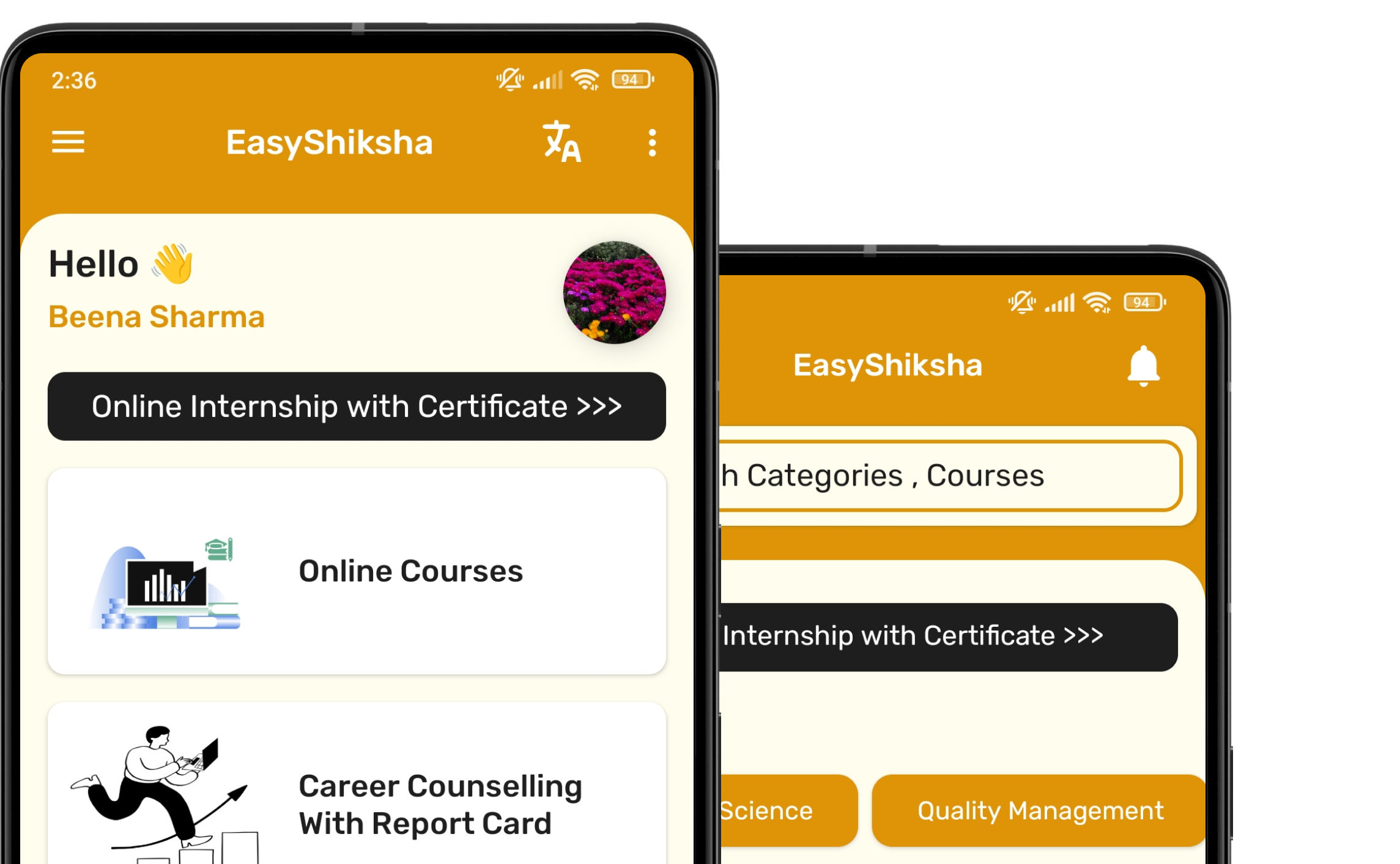


1 million+ learned on the EasyShiksha App
Trusted by Standards & Global Compliance Frameworks





Built under internationally recognized standards for quality, information security, educational excellence and business continuity.
ISO 9001:2015 | ISO/IEC 27001:2022 | ISO 21001:2018 | ISO 22301:2019 | DPIIT Recognized Startup | MSME Registered