









Join thousands of students achieving their dreams with expert-led courses.
Join free and unlock everything on EasyShiksha.
Takes less than 3 seconds — no password needed
Please enter a valid email address.
Checking your email…
Almost done — just verify your number so we can send course updates and certificates.
Used only for verification & updates
Incorrect OTP. Please try again.
Takes less than 10 seconds
Please select your country.
Please select your state.

Linux is an operating system used in computers, servers, cloud platforms and many development environments. It is popular among programmers because it provides useful tools for writing code, managing files, running programs and working with servers.
One important feature of Linux is the command line. It allows users to perform different tasks by typing commands instead of clicking through menus.
For BCA students, learning Linux commands is a useful way to understand how computers work and how software is managed. These skills can also help students during programming practice, college projects and technical job preparation.
This article explains Linux in simple language, introduces important commands and provides practical exercises for beginners.
Linux is an operating system that manages computer hardware and software. It helps users run applications, store files, connect to networks and perform other computer-related tasks.
Unlike some operating systems, Linux is available in many distributions. A distribution is a version of Linux that comes with its own software, tools and desktop environment.
Some commonly used Linux distributions are:
Ubuntu
Linux Mint
Fedora
Debian
Kali Linux
Linux is used for personal computers, software development, servers and many other technical activities.
The Linux command line is a place where users type instructions to perform tasks.
For example, instead of opening a folder by clicking it, users can type a command to display its contents.
A command usually contains a command name and may also include options or additional information.
Example:
ls -lHere:
ls displays files and folders.
-l displays the information in a detailed list format.
The command line may look difficult at first, but beginners can learn it by practising a few commands every day.
Linux knowledge can help students understand different areas of computer applications and software development.
Students learn how an operating system manages files, folders, users and running programs.
Many programming tools can be used through the Linux terminal. Students can run programs, install packages and manage project files using commands.
Linux is widely used on web servers. Basic command-line knowledge helps students understand how applications are managed on servers.
Developers often use terminals for Git, Node.js, Python, package installation and other development tasks.
Linux knowledge can support learning in software development, system administration, cloud computing and technical support.
Students exploring computer application courses can also visit the BCA programme directory on EasyShiksha.
Beginners do not need to purchase a separate computer to start learning Linux. They can choose a suitable setup based on their computer and learning requirements.
Ubuntu is a beginner-friendly Linux distribution. Students can install it on a computer and practise using its terminal.
Windows users can use Windows Subsystem for Linux (WSL) to run a Linux environment inside Windows.
A virtual machine allows students to run Linux inside another operating system using virtualisation software.
For beginners, Ubuntu or WSL can be convenient starting options. Students should follow the installation instructions carefully and keep important files backed up before changing their computer setup.
The following commands are useful for beginners. Students should practise them in a terminal to understand how they work.
The pwd command displays the location of the folder where the user is currently working.
pwdExample output:
/home/studentThis means the current working directory is the student folder inside home.
The ls command displays the files and folders in the current location.
lsFor a detailed list, use:
ls -lThe cd command is used to move from one folder to another.
cd DocumentsTo return to the parent folder:
cd ..To move to the home directory:
cd ~The mkdir command creates a new folder.
mkdir BCA_ProjectThis creates a folder named BCA_Project.
The touch command creates an empty file if it does not already exist.
touch index.htmlThis creates an empty HTML file in the current folder.
The cat command displays the content of a file.
cat notes.txtIt is useful for quickly checking the contents of a text file.
The cp command copies a file from one location to another.
cp notes.txt backup.txtThis creates a copy named backup.txt.
The mv command can move a file or change its name.
To rename a file:
mv notes.txt study-notes.txtThe rm command deletes files.
rm old-file.txtStudents should use this command carefully because deleted files may not be easy to recover. Avoid experimenting with powerful deletion options or commands that target important system folders.
The clear command removes the previous terminal output from the screen.
clearIt does not delete files or change the computer's data.
After learning the basic commands, students can practise a few additional commands.
| Command | Purpose | Example |
|---|---|---|
whoami |
Displays the current username. | whoami |
date |
Displays the current date and time. | date |
echo |
Displays a message in the terminal. | echo "Hello Student" |
head |
Displays the first lines of a file. | head notes.txt |
tail |
Displays the last lines of a file. | tail notes.txt |
find |
Searches for files and folders. | find . -name "*.txt" |
man |
Opens the manual for a command. | man ls |
history |
Displays previously used commands. | history |
These commands help students perform everyday tasks without opening multiple applications.
Linux stores files and folders in a hierarchical structure. The main starting point is called the root directory, represented by /.
Some important directories include:
| Directory | Purpose |
|---|---|
/home |
Stores personal folders for users. |
/etc |
Contains system configuration files. |
/bin |
Contains essential user commands on systems that use this directory structure. |
/tmp |
Stores temporary files. |
/var |
Contains changing data such as logs. |
/usr |
Stores many applications and shared system resources. |
Students do not need to memorise every directory at the beginning. They can start by understanding the home directory and learning how to move between folders.
Linux uses file permissions to control who can read, change or execute a file.
There are three common permission categories:
Read (r): Allows a user to view file contents.
Write (w): Allows a user to modify a file.
Execute (x): Allows a user to execute a file or enter a directory, depending on its type.
To view file permissions, use:
ls -lExample output:
-rwxr-xr-- 1 student student 1200 app.shThe permission section at the beginning shows which actions are allowed for different user groups.
The chmod command is used to change file permissions. For example:
chmod +x app.shThis adds execute permission according to the command's permission rules.
Students should understand permissions before changing them, especially when working with system files.
Linux distributions provide package managers that help users install, update and remove software.
For example, Ubuntu uses the APT package manager.
To update the available package information:
sudo apt updateTo install a package:
sudo apt install package-nameReplace package-name with the name of the software you want to install.
The sudo command runs an instruction with administrator privileges. Students should use it only when necessary and understand the command before running it.
Package installation commands can differ between Linux distributions.
Linux is useful for students who want to practise programming through the terminal.
For example, a Python program can be created and executed using a text editor and Python interpreter.
Create a file:
touch hello.pyAdd the following code:
print("Hello, BCA Student!")Run the program:
python3 hello.pyExpected output:
Hello, BCA Student!Students can follow a similar approach for other programming languages after installing the required compiler or interpreter.
The best way to learn Linux is to practise commands on small tasks.
Create a folder named BCA_Practice and move inside it.
Commands:
mkdir BCA_Practice
cd BCA_Practice
pwd
Learning outcome: Understand folder creation, directory navigation and current location.
Create three files inside the project folder.
touch index.html style.css script.js
ls
Copy one file:
cp index.html index-backup.htmlRename another file:
mv script.js app.jsLearning outcome: Learn how to create, display, copy and rename files.
Create a file and add some text to it.
echo "Linux Practice for BCA Students" > notes.txtDisplay its content:
cat notes.txtLearning outcome: Understand how to save and read simple text using commands.
Create a few text files and search for one of them.
find . -name "notes.txt"Learning outcome: Learn how to search for files inside a folder.
Create a Python file, write a simple print statement and run it using the terminal.
Learning outcome: Understand how programming files can be executed from the command line.
Students may face small errors while learning Linux. Understanding these mistakes can make practice easier.
Linux commands are generally case-sensitive. For example, Documents and documents may refer to different folder names.
Before creating or deleting files, use pwd and ls to check the current location.
Commands such as rm can permanently remove files. Check the filename and location before using them.
The sudo command provides additional privileges. Do not use it for every command.
Students should understand what a command does before running it, especially when it changes files, permissions or system settings.
When a command fails, read the displayed message. It may explain whether a file is missing, a permission is denied or a command is unavailable.
Linux knowledge is useful in several areas of a BCA programme.
| BCA subject | How Linux is useful |
|---|---|
| Operating Systems | Understand files, processes and user permissions. |
| Programming | Run and manage programs through the terminal. |
| Computer Networks | Practise basic network-related commands. |
| Web Development | Manage project files and run development tools. |
| Software Engineering | Use development environments and command-line tools. |
| Cloud Computing | Understand the operating systems commonly used on servers. |
Students can combine Linux practice with their regular programming assignments to improve their technical understanding.
Linux is used in different technical roles. Basic knowledge can help students prepare for further learning in these areas.
| Career option | Main responsibilities | Useful additional skills |
|---|---|---|
| Linux Support Technician | Help users with basic Linux-related problems. | Linux commands, troubleshooting and system basics. |
| System Administrator | Manage computer systems, users and services. | Linux administration, networking and security. |
| Backend Developer | Build and maintain server-side applications. | Programming, databases, APIs and Linux basics. |
| DevOps Engineer | Help manage application development and deployment processes. | Linux, scripting, Git and deployment tools. |
| Cloud Support Associate | Assist with cloud-based systems and services. | Linux, networking and cloud fundamentals. |
| Software Developer | Develop, test and maintain software applications. | Programming languages, debugging and development tools. |
Learning basic Linux commands alone does not qualify someone for every role. Students need additional technical knowledge, practical experience and role-specific training.
Students can follow this learning plan to develop Linux skills gradually.
Week 1: Understand Linux. Learn what Linux is, explore its desktop environment and open the terminal.
Week 2: Practise basic commands. Learn pwd, ls, cd, mkdir, touch, cat and clear.
Week 3: Manage files and folders. Practise copying, moving, renaming and searching for files.
Week 4: Learn permissions. Understand read, write and execute permissions and practise viewing them.
Week 5: Run programs. Create and execute simple Python or other supported programming files.
Week 6: Complete a small project. Create a project folder, organise files, run a program and prepare a short report explaining the commands used.
Regular practice is more useful than memorising a large number of commands in one day.
Linux is an operating system used to run computers, applications and servers. It provides tools for managing files, running programs and performing different computer tasks.
No. Beginners can start with a few simple commands and gradually learn more advanced features through practice.
No. Basic Linux commands can be learned without programming knowledge. However, programming experience can make Linux more useful for development work.
Yes. Windows users can use Windows Subsystem for Linux or a virtual machine to practise Linux commands.
Ubuntu and Linux Mint are commonly used beginner-friendly options. Students can choose based on their computer and learning requirements.
Linux is an operating system, while the command line is an interface used to give instructions to the operating system.
Yes. Developers can use Linux to manage project files, run programming tools, work with servers and perform development-related tasks.
Start with pwd, ls, cd, mkdir, touch, cat, cp, mv and clear. These commands cover many basic file and folder operations.
Linux is a useful operating system for students who want to build a career in computer applications and software development. Learning the command line helps BCA students manage files, run programs, understand permissions and work with development tools.
Beginners should start with simple commands and practise them regularly. Small exercises such as creating folders, managing files and running Python programs can help develop confidence.
With regular practice, students can use Linux knowledge in programming projects and continue learning areas such as system administration, server management, cloud computing and DevOps.
More News Click here










Discover thousands of colleges and courses, enhance skills with online courses and internships, explore career alternatives, and stay updated with the latest educational news..

Gain high-quality, filtered student leads, prominent homepage ads, top search ranking, and a separate website. Let us actively enhance your brand awareness.
Download EasyShiksha Mobile Apps from Android Play Store, Apple App Store, Amazon App Store, and Jio STB.
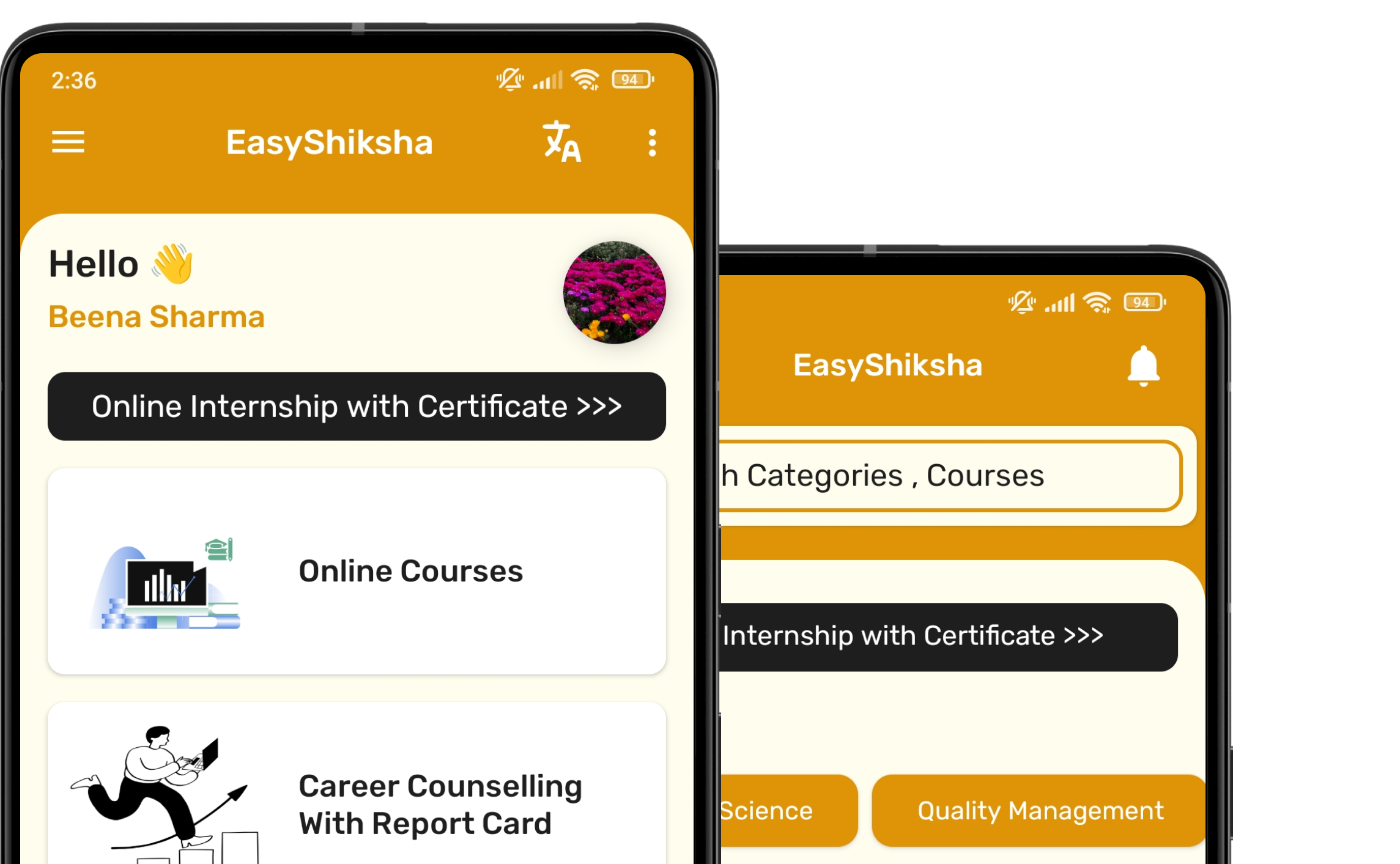


1 million+ learned on the EasyShiksha App
Trusted by Standards & Global Compliance Frameworks





Built under internationally recognized standards for quality, information security, educational excellence and business continuity.
ISO 9001:2015 | ISO/IEC 27001:2022 | ISO 21001:2018 | ISO 22301:2019 | DPIIT Recognized Startup | MSME Registered